What is SAML SSO?
Single Sign-On (SSO) authentication using Security Assertion Markup Language (SAML) is a secure and straightforward login standard that enables users to authenticate once and gain access to associated websites or applications. SAML facilitates the exchange of security credentials between an identity provider and a service provider (Semrush), providing a reliable method of authenticating and authorizing users across different platforms, digital touchpoints, and devices.
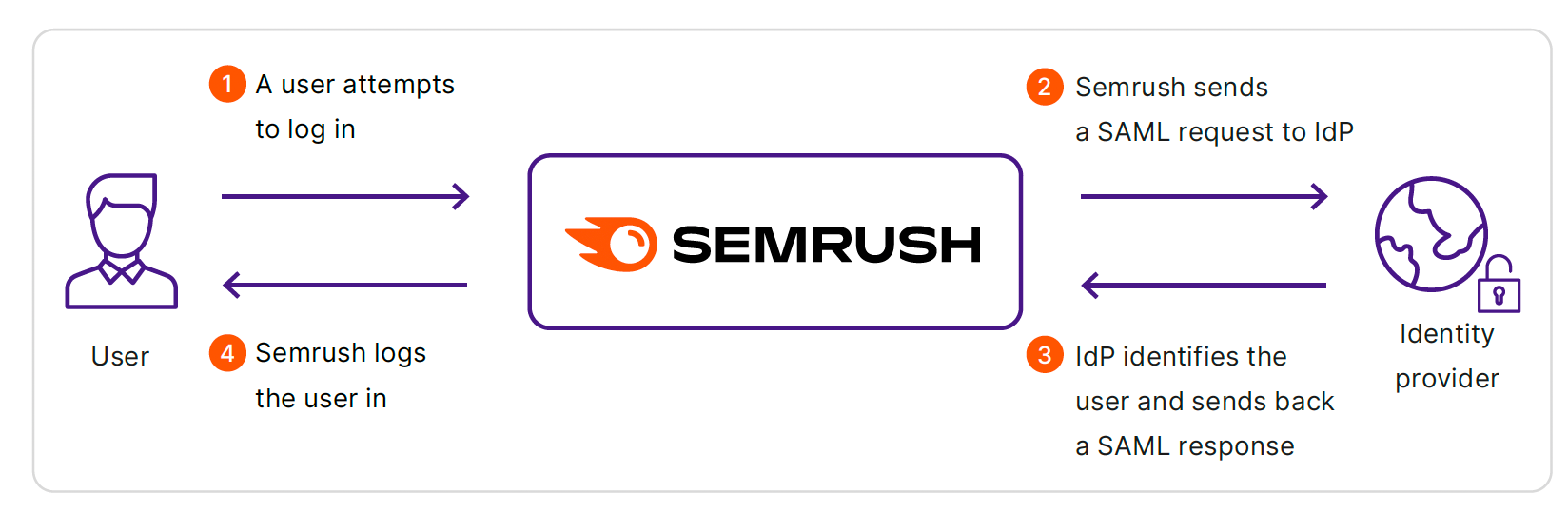
SAML SSO vs. password-based authentication
- Higher security (no weak passwords; identity provider stores the login data)
- Easier maintenance (no need to reset passwords or create credentials for new users)
- Better user experience (no need to remember and type in credentials)
Supported features and limitations
Currently, Semrush utilizes SAML 2.0 and offers user creation, registration, and authorization features.
SSO is available to Guru and Business users.
Semrush SAML SSO Integration Steps
Note: Make sure your users are already registered on the Semrush platform before initiating the SAML SSO integration.
To enable SSO, contact our team via this form.
Step 1
The Semrush team provides you with the following configuration data:
- ACS URL/Reply URL: https://sr03.toolzpad.com/sso/saml/acs
- Metadata URL: https://sr03.toolzpad.com/sso/saml/metadata/
- Audience URI/Entity ID: https://sso.sr03.toolzpad.com
- Default Relay State: https://sr03.toolzpad.com/dashboard/
- Domain Verification Token: A unique token used to verify ownership of the domains and subdomains you want to include in your SAML SSO allowlist (see Step 2).
Note: Semrush uses NameID from SAML responses for authentication. Ensure that you configure this attribute with your identity provider.
Step 2
To add domains or subdomains to your SAML SSO allowlist, you must verify their ownership by adding a DNS TXT record containing the verification token provided by Semrush.
Each domain and subdomain must be verified separately. Verifying a parent domain does not automatically verify its subdomains.
To add the verification record:
- Sign in to your domain hosting provider's account and open the DNS management settings.
- Create a new DNS record and select TXT as the record type.
- In the Name, Host, or Alias field, specify the domain or subdomain you want to verify. Field names may vary depending on your DNS provider, but the TXT record must correspond to the exact domain or subdomain you're verifying. For a root domain, you can typically enter @ or leave the field blank. For a subdomain, follow your DNS provider's instructions.
- In the Value, Answer, or Destination field, enter the following value:
semrush-saml-verification=<token>
Replace <token> with the verification token provided by the Semrush team. - Save the DNS record, then repeat these steps for each additional domain or subdomain you want to include in the allowlist. Adding verification TXT records generally won't affect your website or existing DNS settings.
Note: DNS changes may take time to propagate. Make sure the TXT records are publicly accessible so that the Semrush team can verify domain ownership.
Step 3
After configuring your SSO environment, you will need to:
- Download the SAML Entity Metadata XML file
- Send the XML file and your preferred allowlist to the Semrush team. The allowlist must include at least one authorization domain or subdomain verified as described in Step 2. You can also include individual email addresses belonging to these verified domains or subdomains in the allowlist.
Step 4
The Semrush team processes the data and confirms once the integration is complete.
Generally, it takes approximately 1 business day to complete the integration, depending on the Semrush team's workload. To expedite the process, please submit all necessary data on time and be prepared to provide additional information as needed.
Log in to Semrush via SAML SSO
Once the integration is done, there will be two options for your users to log in to Semrush via SAML SSO:
- Use the link https://sr03.toolzpad.com/login/saml/, which will redirect a user to your identity provider. Once they authenticate using their corporate credentials, they will be authorized and redirected to the Semrush interface.
- Alternatively, a user can open a list of applications registered on your identity provider and select Semrush to proceed to the Semrush interface.
Note: After the integration is complete, your users will still be able to use password-based authentication. Even if they log in via SAML SSO, the password option will remain available until you have fully tested the integration and explicitly request that Semrush disable password-based login.